Content
-
Guideline Inventory Investigation Suppliers
-
How to identify the root causes of discrepancies
- Review mandatory inventory date
- Review submitted inventory result
- Review delivery notes for shipments received during the relevant inventory
- Review delivery notes for shipments dispatched during the relevant inventory accounting period. (The period between the last inventory and current inventory)
- Received in the LES Portal but physically in-transit.
-
How to identify the root causes of discrepancies
Related articles
- Inventory / Stock Take
- Missing goods issue
- Missing goods receipt empty packaging
- What is the replacement fee?
How to Investigate Stock Discrepancies
COMMON CAUSES FOR DISCREPANCIES:
- Calculation or typing error in submitted inventory results.
- Counting error at the stock take.
- The Volvo packaging stock must be counted and reported in the Inventory Document on the same date.
- Delivery to unauthorized users.
- Packaging has been scrapped without VGPL approval.
- Incorrect or missing booking of delivery note from/onto your packaging account. Please see below explanation on how to examine Transaction History in LES.
- Packaging delivery arrived physically to your company prior to automatic Goods Receipt in LES Portal (found in Transaction History).
- Packaging delivery not yet physically arrived at your company but has been automatic Goods Receipt in LES Portal (found in Transaction History)
Guideline Stock Discrepancy Investigation Suppliers
Purpose & Scope
A guideline of the most common errors and root causes for differences between supplier’s inventory result and their stock balance according to LES.
How to identify the root causes of discrepancies
Below you will find some examples that can be the cause of your discrepancy.
If you are investigating an inventory discrepancy, remember to communicate the identified causes to Packaging Control within the given deadline.
Review mandatory inventory date
- Have you counted and registered the count on the same day?
No: Calculate the quantity of V-EMB physically sent & received between the stock count and the time of submitting the results. Add/subtract the results from your first count to get the stock that you should have had at the time of submitting your results.
Then contact us and let us know what happened and what the stock count should have been.
Review submitted inventory result
- Has the correct result been submitted?
No: Specify correct results and report back us.
- Have you counted all locations under your company’s packaging account administration?
No: You may be required to re-count. Secure that you have performed the “Goods Issue” for all your outgoing deliveries.
Review delivery notes for shipments received during the relevant inventory accounting period
Use the Excel feature in the LES Transaction History menu (search data: Movement Type 101)
to view incoming delivery notes.
- Have any deliveries been booked onto your account during the inventory period?
Yes: Specify respective delivery notes and the time of physical reception.
- Have any deliveries been booked with incorrect quantities or packaging types?
Yes: Specify correct packaging types and quantities for respective delivery note number and
report us.
Review delivery notes for shipments dispatched during the relevant inventory accounting period. (The period between the last inventory and current inventory)
Use the Excel feature in the LES Transaction History (search data: Movement Type 641,outgoing deliveries) to view delivery notes.
- Have you failed to issue delivery note?
Yes: Please contact us and let us know the date of shipment, receiver plant, types & quantities of V-EMB.
- Have you incorrectly issued delivery note?
Yes: Please contact us and let us know the delivery note number & incorrect quantities and types.
- Have you registered delivery note after the inventory date for dispatches before the inventory date?
Yes: Please contact us and let us know the delivery note number and the date of physical dispatch.
- Have you sent packaging to an unauthorized user?
Yes: Please contact us and let us know the towards which user you have sent packaging.
Missing Receivers?
Please contact us and let us know the towards which user you have sent packaging.
If the receiver is a Volvo plant, then contact the responsible packaging engineer at receiving plant they need to register a packaging Nii Case (New Input).
If the receiver is not a volvo plant, please create a ticket as instruction here: How to place a ticket? – Request Flow Non-Volvo
Received in the LES Portal but physically in-transit.
If you have had an incoming delivery in LES, the same day you are submitting your stock count,
but it has not yet been physically received nor included in the count.
Then you will need to include the in-transit quantities in your stock count figures before
submitting it on the portal.
If the in-transit quantities are not included, then the discrepancy will be higher, or you will get a
lower surplus of packaging due to that the system has done a “Goods Receipt".
Received in the LES Portal but physically in-transit.
However, example 1 can cause a new discrepancy for you after the next stock take if the physically in-transit figures isn’t added correctly.
However, example 1 can cause a new discrepancy for you after the next stock take if the physically in-transit figures isn’t added correctly.
For example, if the actual shipment is 10 L-pallets, but the delivery note states 20 L-pallets and you add 20 L-pallets to your inventory figures. Then it will give you a discrepancy of -10 L-pallets next stock take.
This is because the actual shipment did not correspond to the delivery note, which in this example is causing you to “add” 10 more L-pallets that doesn’t exist within your premises. Therefore, adjustments for inventory figures regarding shipments around the stock take(Example 1) needs to be adjusted after they have been received.
Physically received but in-transit in the LES Portal.
If you should receive a delivery physically before the stock take but it has not yet been “Goods Receipt” on your account or when submitting your count.
Then you need to exclude those quantities from your stock count figures (if they have initially
been included in your stock count) before submitting it on the portal or let us know so we can
Goods Receipt it on your account before you submit your count.
If the in-transit quantities are not excluded, then there is a chance that those figures could
cause a discrepancy for the next stock take.
LES Transaction History
Common areas of use
- Finding double bookings. For example, automatic and manual.
- Finding booking errors. For example, entering “100” instead of “10”
- Checking that the V-EMB you physically receive matches what is registered in LES.
- Checking that the V-EMB you physically send is correctly registered in LES. It is especially important to make sure that the automatic bookings match what you physically send.
- Investigating inventory discrepancies. For example, checking when a delivery was goods receipt on your account.
How to use it
- When inside the LES Portal, go to History.
- You then have the option to look at a specific material/V-EMB type. You can also choose a specific movement type, incoming “101” or outgoing “641” for example. Please see the Movement Type Table for more information.
- It is mandatory to fill in the relevant date range “from” and “to”.
- The “Export” button gives the option of exporting the data to excel (recommended).
Analyze the data
If you exported the data from LES into excel, then you can find the most used data in:
Column P: Contains the Movement Types (MvT). You can for example filter on the movement type 641 to see the outgoing movements of packaging. Please see the Movement Type Table for more information on the different types of movements.
Column S: Contains the LES delivery note number.
Column T: Contains the External Delivery ID number. You can choose what External Delivery ID you want to connect to an outgoing delivery note when creating it in LES.
For packaging consumption and EDI user's column T can also contain a long transport booking request number (TBR) starting with “S” used in the ShipIT application. It can also contain other EDI reference numbers. This is one way that you can identify automatically created outgoing delivery notes.
Movement Type Table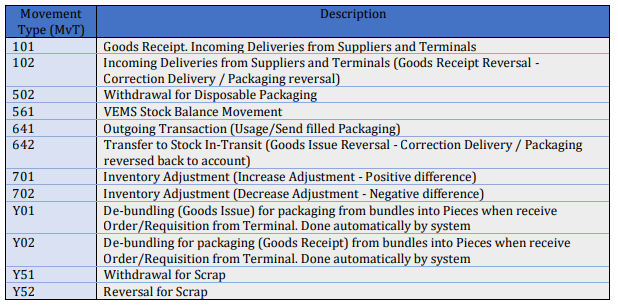
Note that empty packaging deliveries from the packaging terminals go through three Movement
Types. It is easiest to analyze them by filtering on arrival date and time. The goods receipt is
always automatic and in the middle of the night.
101 Incoming V-EMB in bundles.
Y01 Outgoing V-EMB in bundles.
Y02 Incoming V-EMB in pieces.
For more in-depth and detailed information, please see the LES Web portal manual.